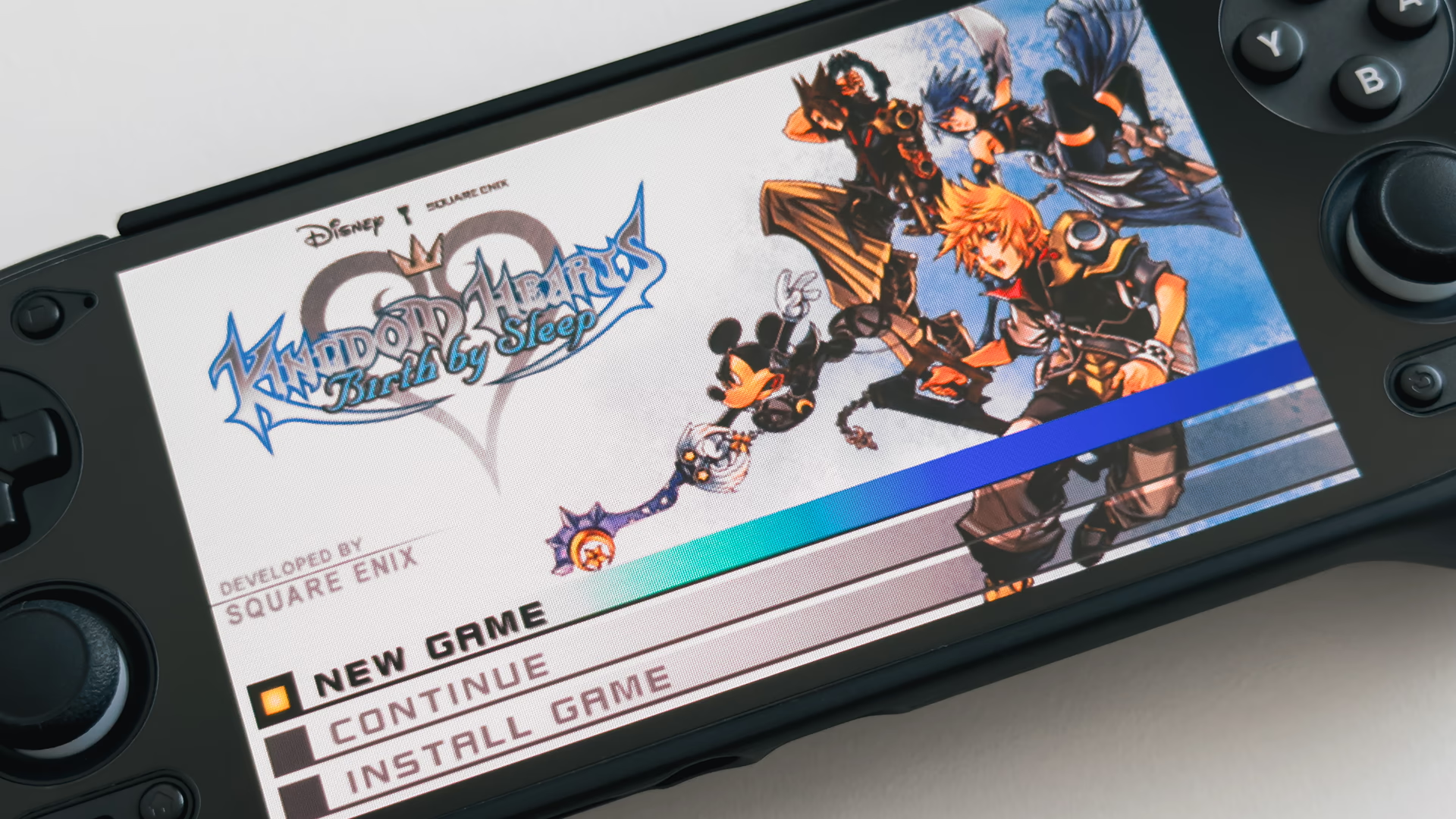
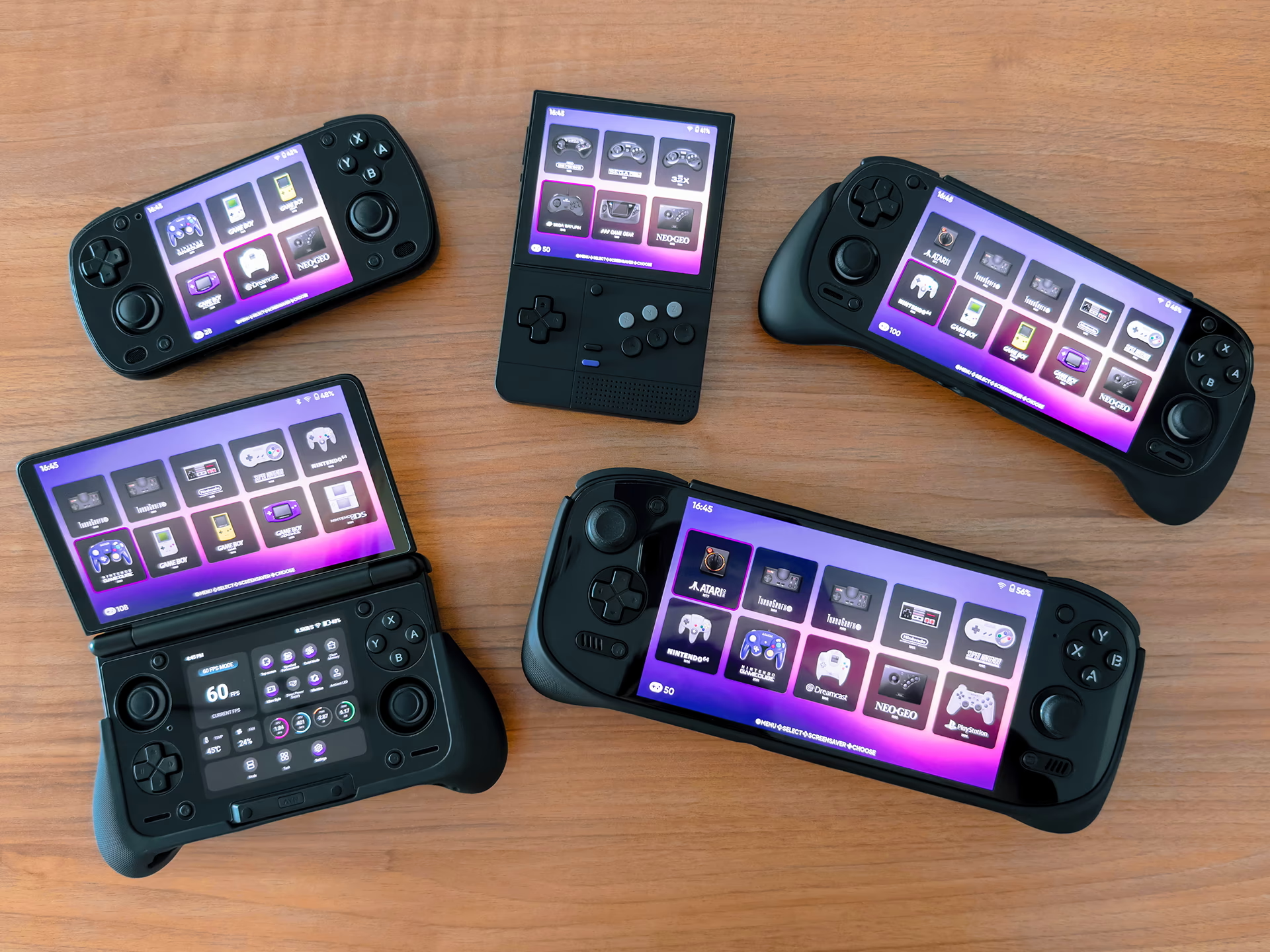
OLED panels on Android handhelds are genuinely great. The blacks are deep, contrast is excellent, and the overall image quality puts them well ahead of LCD handhelds. But one thing I've noticed across quite a few of them is that the colours look a little too saturated out of the box.
That's been true for me on the Retroid Pocket 5, Retroid Pocket Mini V2, Retroid Pocket Classic, AYN Odin 2 Portal, and AYN Thor — all OLED panels.
And if you’ve felt the same way, you're in the right place.
The “Problem”
But first, let’s talk about what’s happening here. It gets a little technical, but essentially, the panels on these OLED handhelds seem to cover around 150% of the sRGB colour space. That may sound impressive on a spec sheet, but if a device is showing content designed around a more standard 100% sRGB presentation without proper colour management, colours can end up looking more saturated than intended. That seems to be the case here.
And just to be clear, this is not an OLED issue. OLED is simply the display technology. The issue here is that these particular OLED handhelds appear to be showing standard content with a much wider, more saturated colour range out of the box.
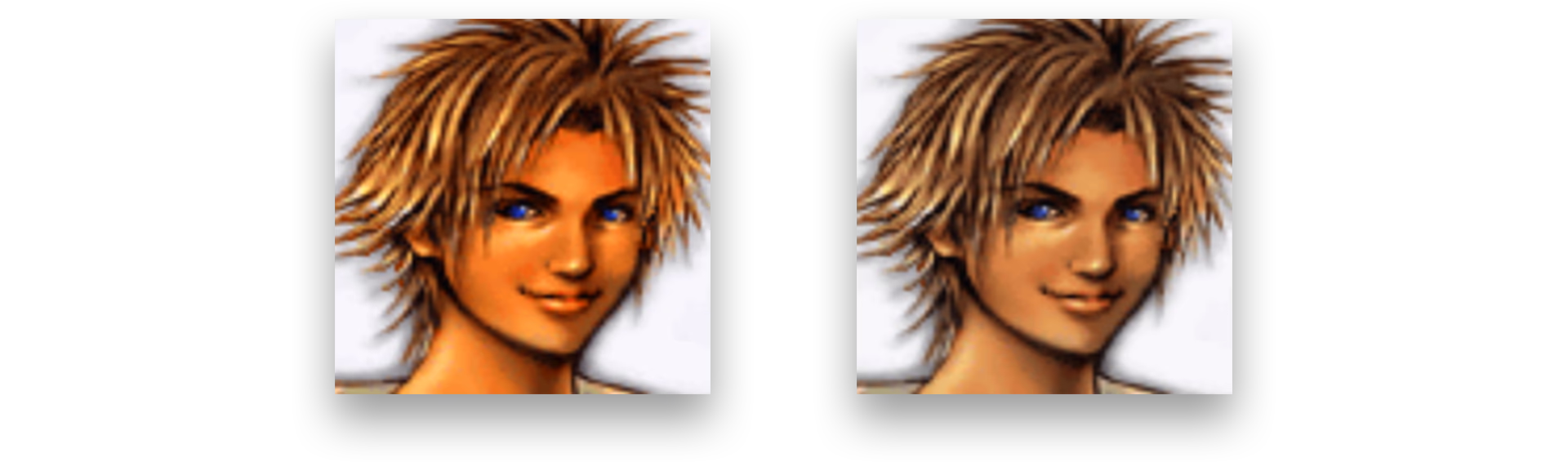
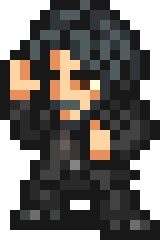
The comparison above is a simple mockup showing the kind of over-saturated look these handhelds can have out of the box — provided you’re viewing this on a properly adjusted screen, of course. The easiest giveaway is usually skin tone. In Final Fantasy X, for example, notice Tidus’s portrait: in the stock setting, his skin takes on an unnatural kumquat look, while the adjusted version appears much more natural.
None of this is to say the stock look is “wrong”. Some people genuinely prefer that more vivid, high-impact presentation, and that’s perfectly fair. This is really for people who, like me, prefer something that’s a little more accurate.
The Tool You'll Need
The tool you’ll need is an app called OdinTools, developed by langerhans. It gives you access to a handful of system-level settings — including the one we care about here: display saturation.
Now, OdinTools was originally made for the AYN Odin 2, as the name suggests. But for this particular tweak, it has also worked on several other modern Android handhelds (running Android 13) in my testing, including the Retroid Pocket 5, Retroid Pocket Mini V2, Retroid Pocket Classic, AYN Odin 2 Portal, and AYN Thor.
Also, unless you really know what you’re doing, I’d leave all other settings in OdinTools alone, especially if you’re not on an Odin 2-family device.
Installing OdinTools
OdinTools can be installed using a couple of methods.
DOWNLOAD/INSTALL FROM THE OFFICIAL GITHUB PAGE
- On your Android handheld, open your browser and head to the official OdinTools GitHub page.
- Go to the Releases section and download the latest APK.
- Once the file has finished downloading, tap it to start the installation.
- If Android asks for permission to install apps from this source, allow it.
- Complete the installation.
Or, if you prefer:
INSTALL VIA OBTAINIUM
If you’ve owned an Android handheld for a little while, there’s a good chance you’ve already come across Obtainium.
For anyone unfamiliar, Obtainium is an app that lets you install and automatically update apps straight from their source repositories, like GitHub. Even beyond OdinTools, it’s a useful app to have on an Android handheld for managing emulators and other tools.
Watch this timestamped video by Retro Game Corps for more on Obtainium and how to use it.
The Fix
Once you have OdinTools installed, open the app and find Display saturation. The default is 1.0.
I set mine to 0.7, which with a bit of math puts you closest to 100% sRGB. You should notice the difference immediately. The setting will remain in place even after a reboot, so you only need to do this once.
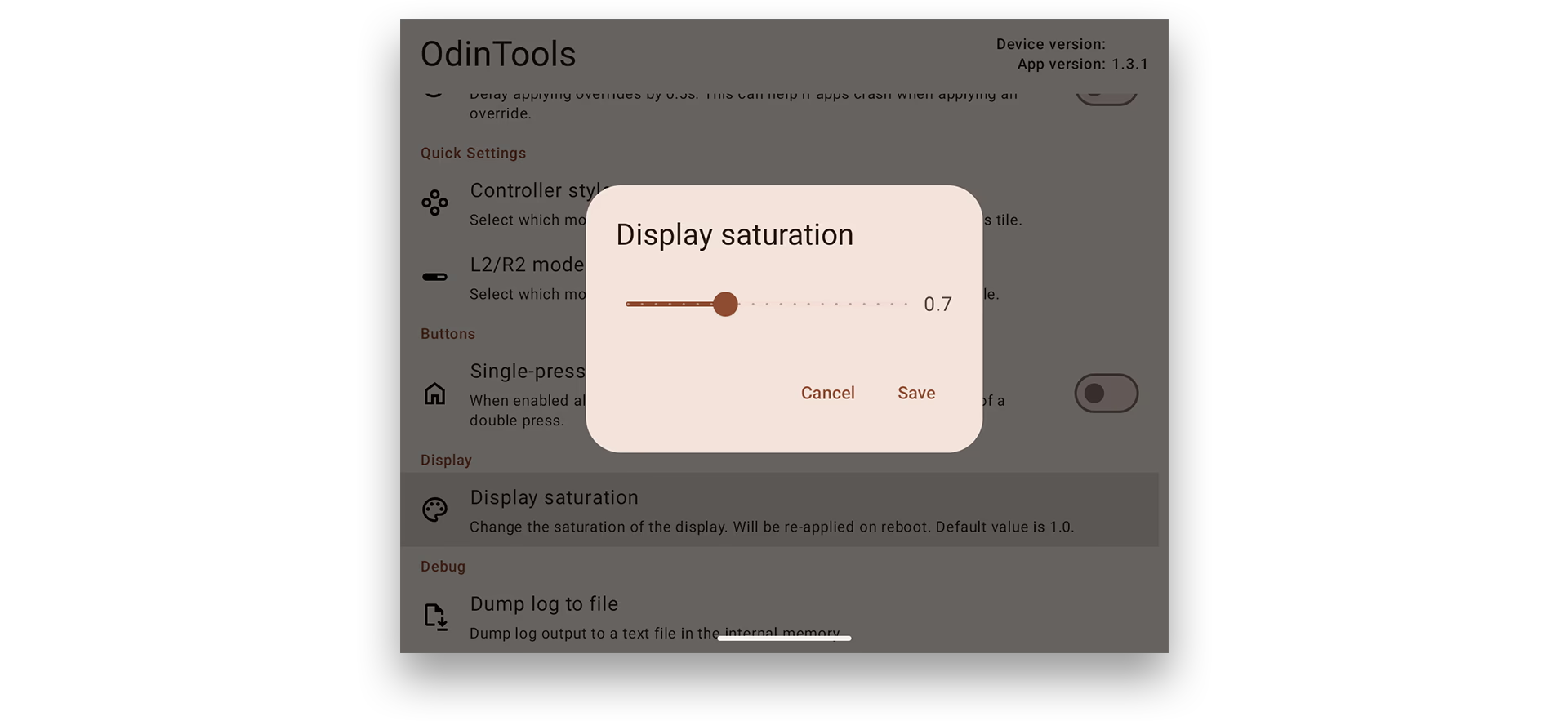
As a quick sanity check, I like comparing the adjusted image against my iPhone 16 Pro. It’s also an OLED display, and while it’s not a perfect reference, it’s a useful way to tell when things are starting to look more natural.
And that’s really it.
Now, if the colours suddenly look washed out at first, give your eyes some time to adapt. Coming from the stock setting, 0.7 can feel underwhelming for a moment, but it starts to look right pretty quickly.
Changelog
APR 23, 2026
- published post