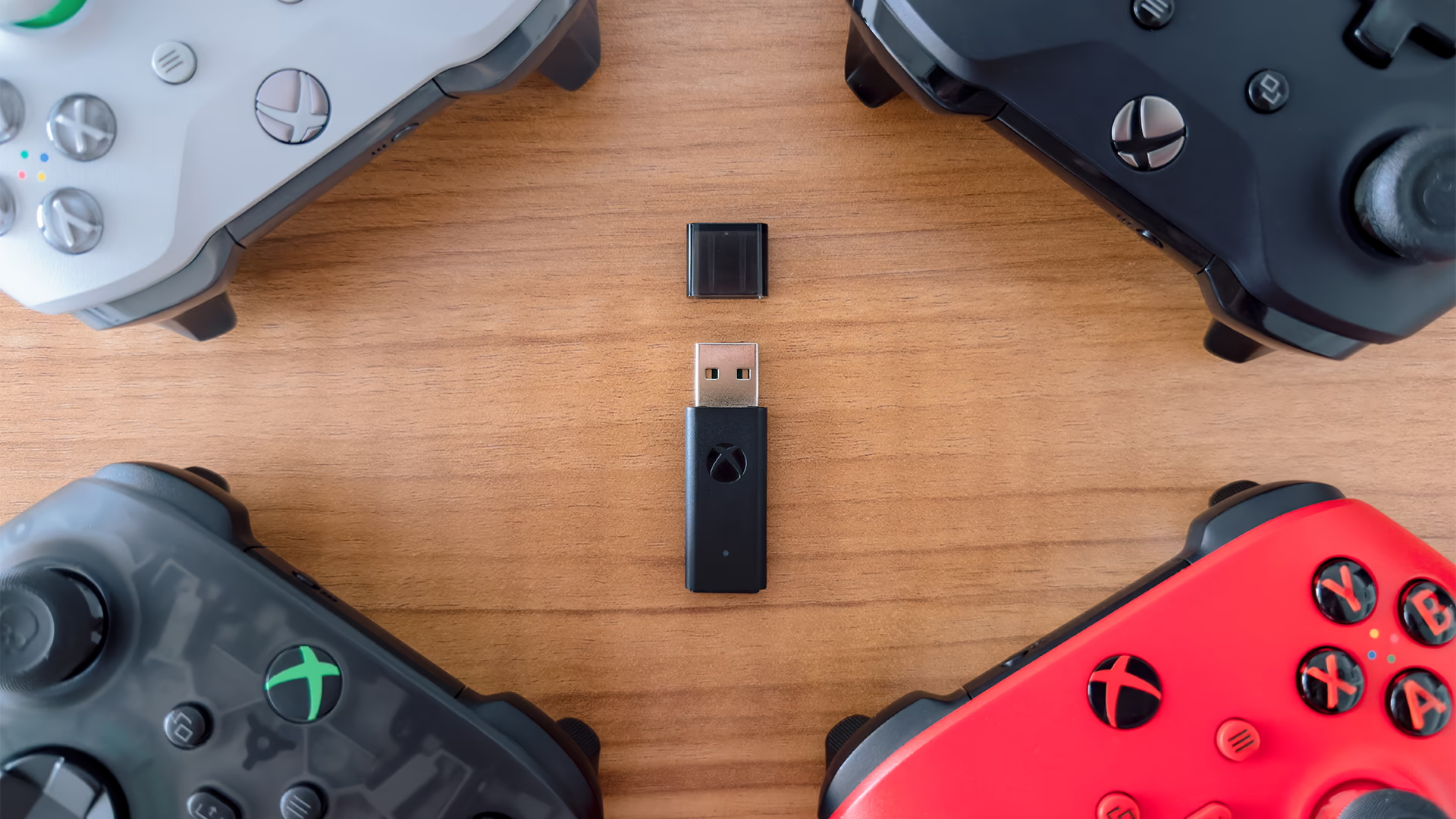
I’ll be upfront about this: the Xbox Wireless Adapter is not something most people need. If you’re using an Xbox controller at a desk and Bluetooth is working fine, or you’re happy going wired, you can probably skip it. But there are a few situations where it starts to make a lot more sense.
Who It Makes Sense For
IF YOU’RE AN XBOX CONTROLLER PERSON AND WANT THE FULL EXPERIENCE
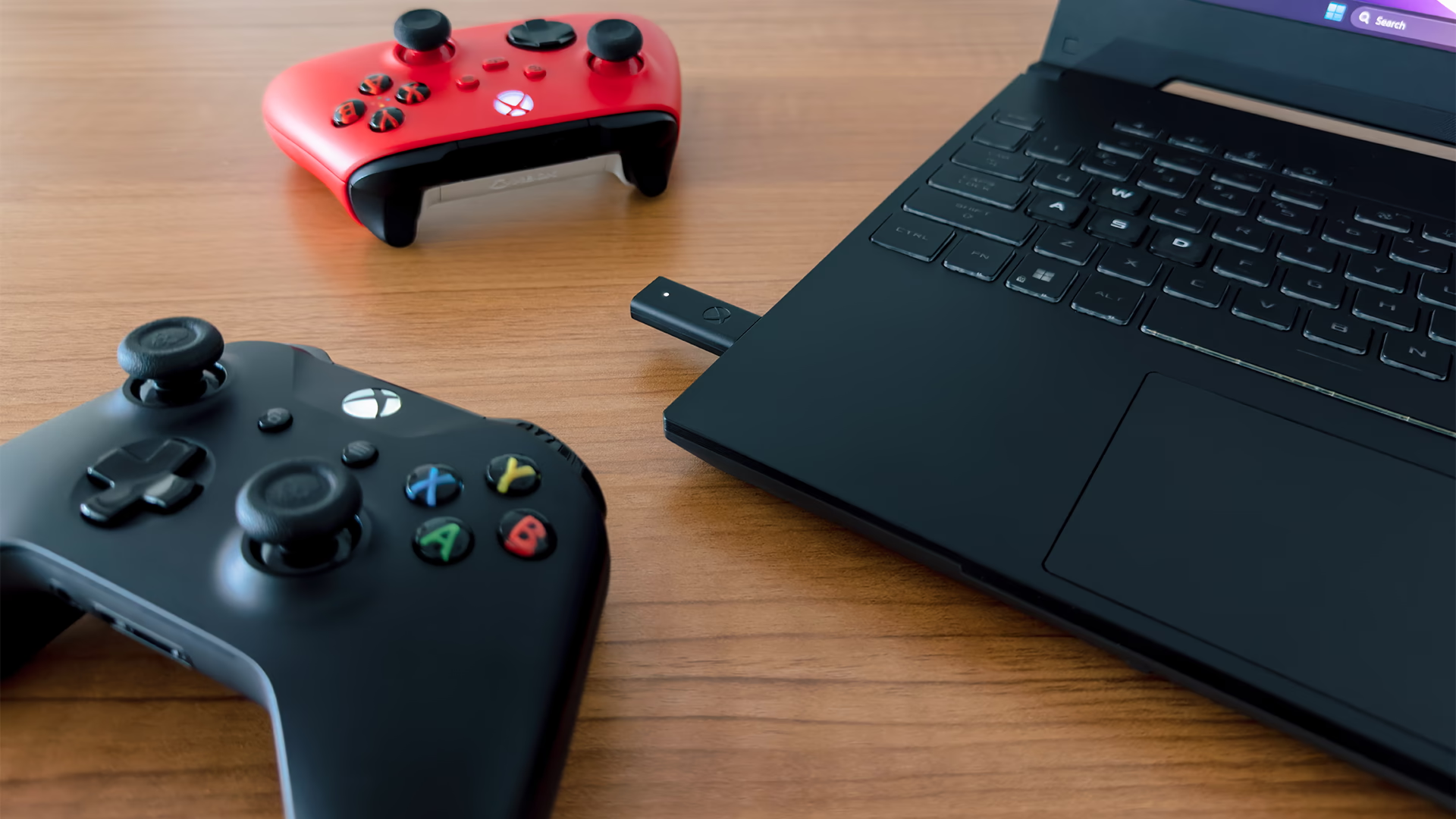
This is probably the best place to start. The adapter makes the most sense for people who specifically like the Xbox Series or Xbox One controller and want to get the most out of it on PC, wirelessly.
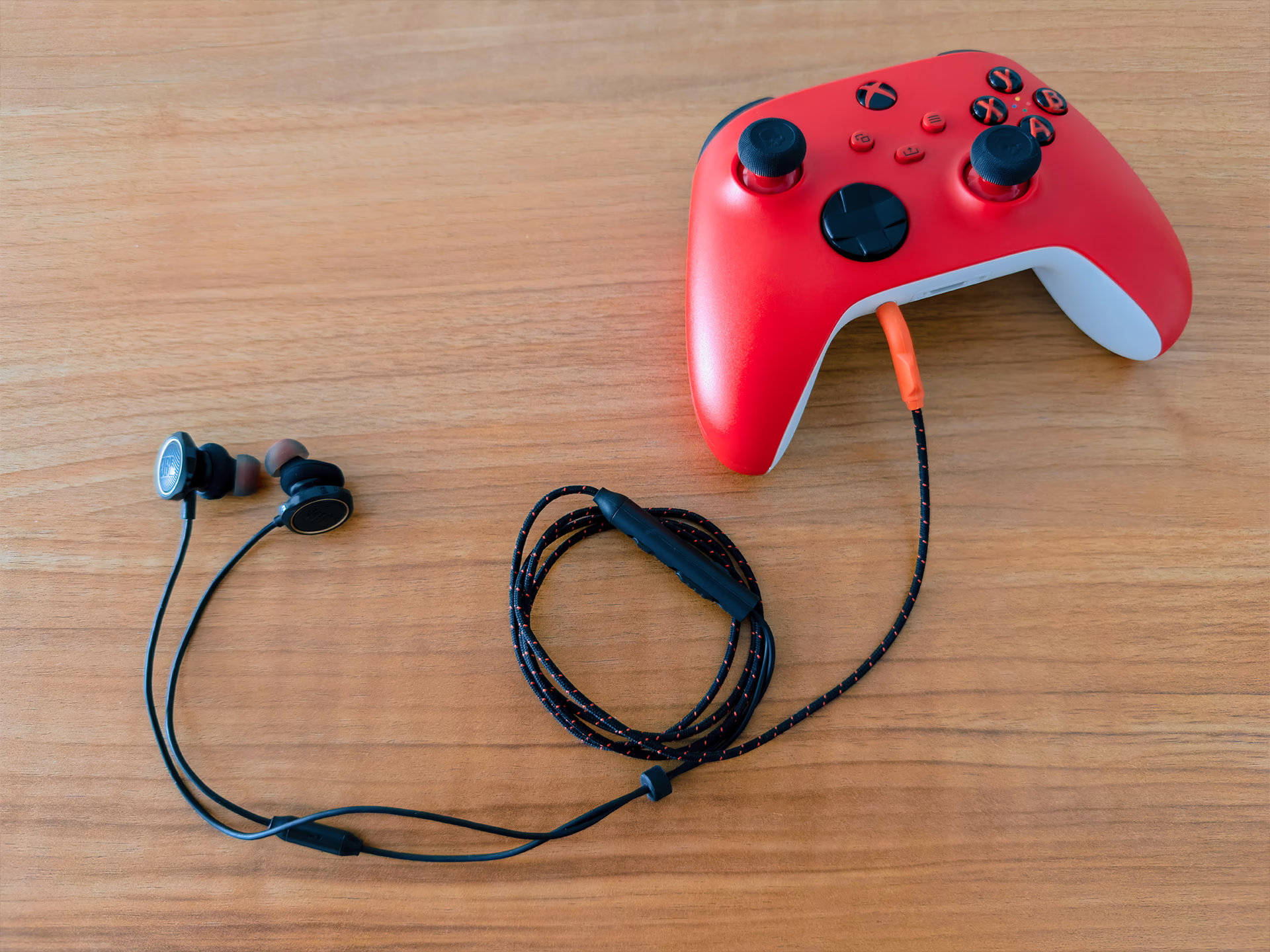
You can technically get the full experience wired. But if you want what the controller can do without being tethered, the adapter is the way to do it. Some functionality only works over USB or Xbox Wireless, not Bluetooth. That includes being able to plug a wired headset directly into the controller, the way you would on an actual Xbox console.
IF BLUETOOTH HAS BEEN MORE TROUBLE THAN IT’S WORTH
This is probably the most common reason someone starts looking into the adapter in the first place.
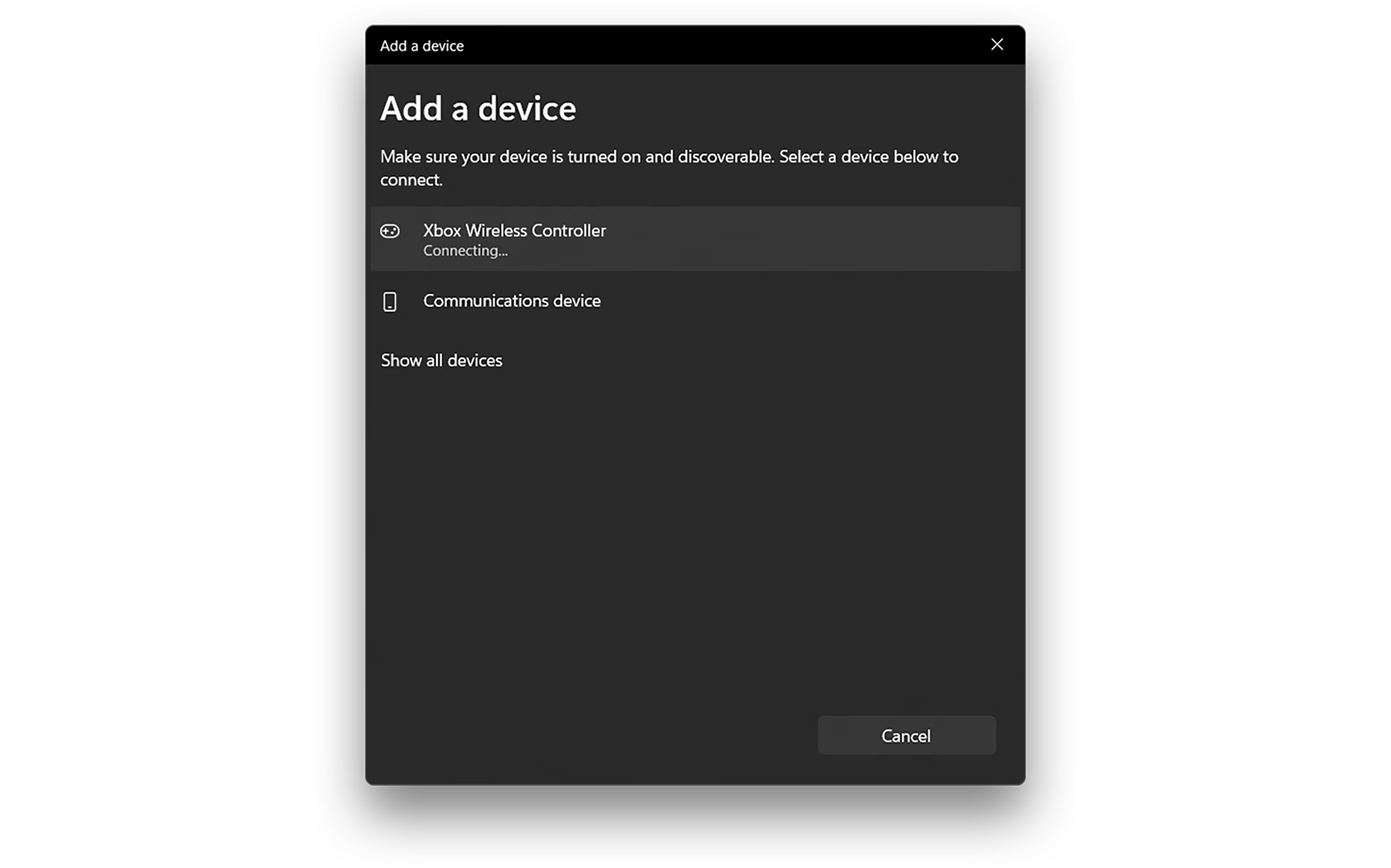
The point here isn’t that Bluetooth is bad. It’s that Bluetooth on Windows can sometimes be fussier than it should be. I’ve personally run into all the classic issues: pairing that doesn’t always go smoothly, reconnecting that takes longer than it should, and the occasional random disconnect... The experience can vary a lot depending on your PC’s hardware, Bluetooth chipset, drivers, and whatever wireless interference happens to be around.
Microsoft describes Xbox Wireless as its own proprietary technology, separate from Bluetooth entirely, built around the Xbox ecosystem. Now, I wouldn’t oversell the adapter as a guaranteed latency upgrade, or a definite improvement in every situation. But for a lot of people like me, it’s simply a lower-friction, more reliable connection when Bluetooth has been the weak link.
IF YOU HAVE A LIVING ROOM PC SETUP
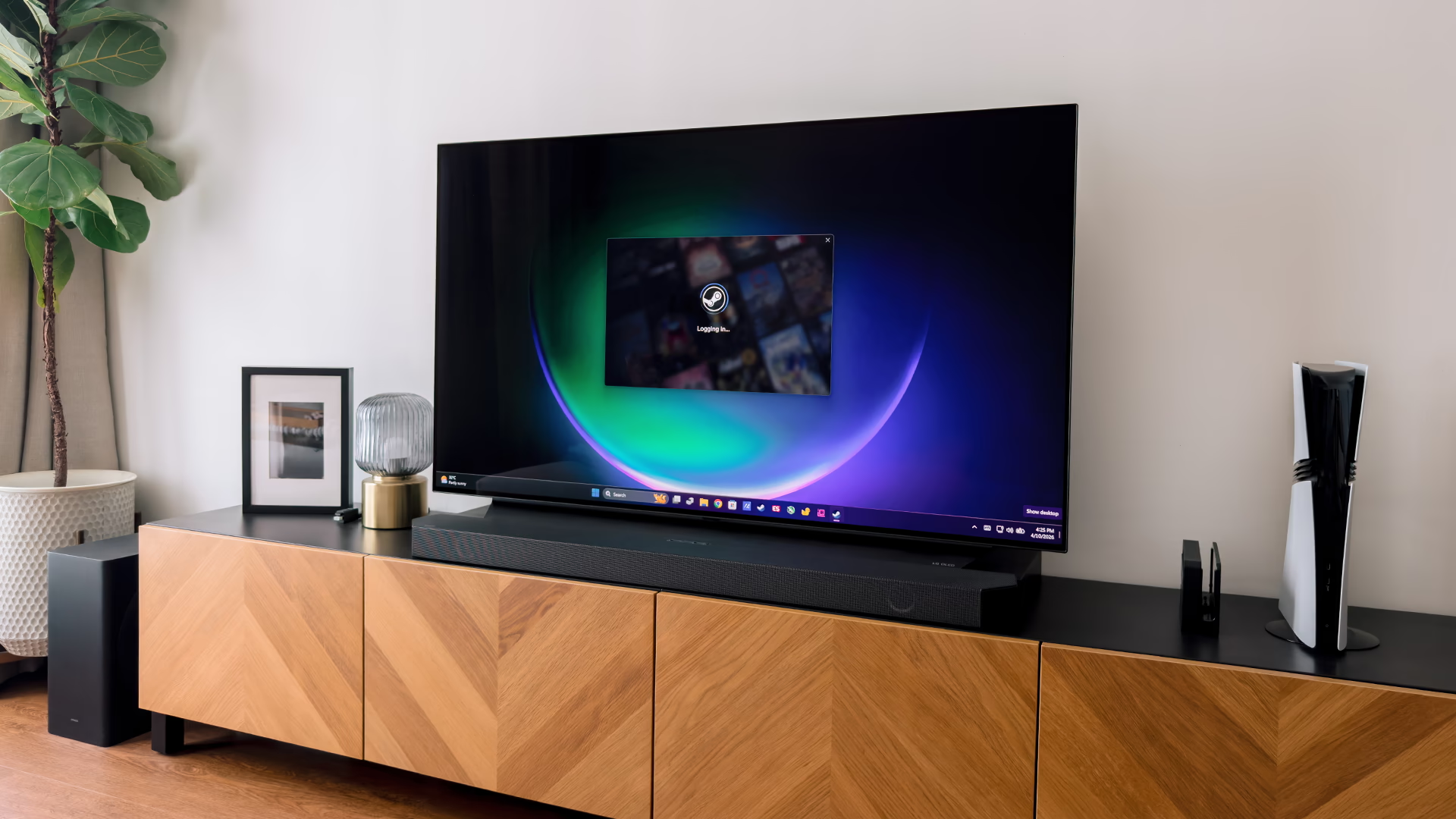
This is where the earlier points become most tangible. I personally have a living room PC setup that I try to console-ize as much as possible, and for me this was the clearest reason to use it.
At a desk, USB or Bluetooth is less of a hassle. You’re closer to the PC, so peripherals can connect directly, and there’s usually less wireless interference too. In a living room setup, a cleaner and more reliable wireless arrangement matters a lot more.
The adapter also opens things up for couch co-op and local multiplayer in a way Bluetooth might not reliably support. Xbox Wireless handles up to eight controllers on a single adapter, while Microsoft’s own recommendation for Bluetooth is one controller at a time.
A QUICK NOTE ON SWITCHING BETWEEN PCS
If you move between setups regularly, this can also be genuinely useful. I personally use my XBOX controller (and adapter) across two Windows machines, and not having to go through the usual Bluetooth pairing dance everytime is pretty neat. All paired controllers carry over to any Windows device you connect it to.
A Few Troubleshooting Notes
IF THE ADAPTER RUNS WARM
The adapter can run a little warm in use so it’s worth using the included USB extender. Especially if you’d rather not have that heat sitting directly at your PC ports.
IF THE ADAPTER KEEPS DISCONNECTING
Ironically, as this is one of the problems people who get the adapter want to avoid in the first place. Anyway, if connection starts randomly dropping out for you, one thing worth checking is the adapter’s power setting in Windows Device Manager. This was the fix that worked for me when I ran into the issue.
- Open Device Manager
- Expand Network adapters
- Right-click Xbox Wireless Adapter for Windows
- Click Properties
- Go to the Advanced tab
- Set Selective Suspend to Disable
Where to buy it
This is the slightly awkward part. The adapter appears to be currently unavailable through the Microsoft Store, and there have been rumours that it may be discontinued. The good news is that it seems to be readily available through third party retailers. Depending on where you live, your local game stores may still have stock too. That’s how I found mine.
Changelog
APR 16, 2026
- published post